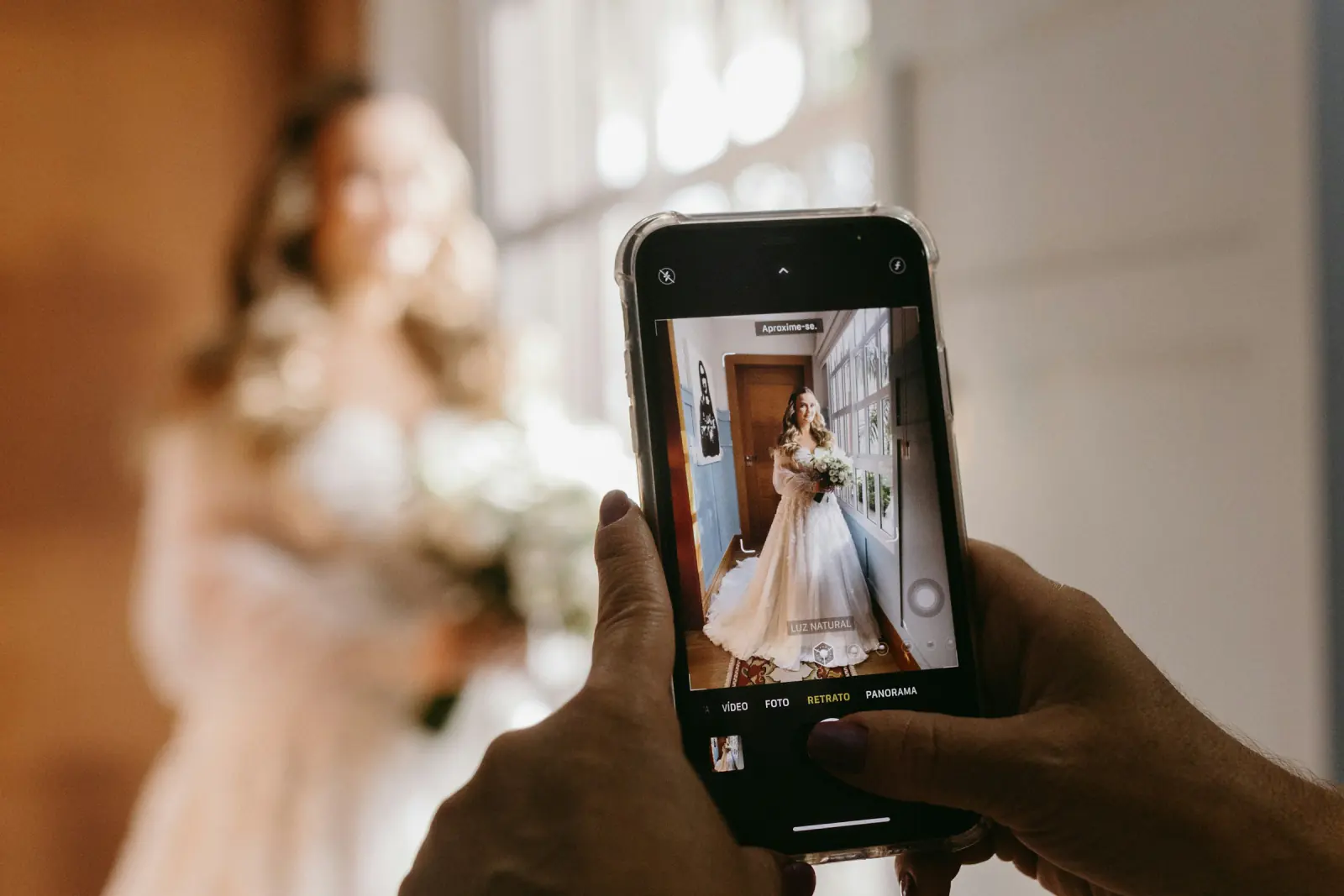
Ask ten couples how they got hold of the photos their guests took, and eight will say "a few trickled in on WhatsApp." The tool you pick decides whether you end up with 40 compressed snapshots spread across five chats or 600 full-resolution photos in one place. This comparison walks through every realistic option – from a plain messenger group to dedicated QR-code guest galleries – so you can choose the one that fits your guest list rather than the one with the loudest ad.
What to Look for in a Wedding Photo Sharing App
Set the bar before you compare products. These eight criteria separate the tools that actually collect photos from the ones that get forgotten by the first dance:
- No app download for guests. Every install step loses people. The aunt with a full phone, the colleague on a work device with no App Store access – they drop out.
- No account. A sign-up screen cuts participation harder than any other hurdle. Scan, upload, done.
- QR code access. One scan at the table beats any link buried in a group chat.
- Live gallery and slideshow. Guests want to see the photos the same evening. A slideshow on the venue TV is the best reminder to keep uploading.
- Privacy controls. Who sees what? A private gallery should be possible without you approving every guest by hand.
- Download quality. You want originals, not thumbnails. Test it with one photo before the wedding.
- GDPR compliance. If you marry in the EU or have European guests, this is not a footnote. See our guide to GDPR-compliant photo sharing.
- Cost model. One-off, subscription, or per guest? Watch for storage deadlines after which photos are deleted.
The Options, Compared Honestly
1. Messenger Groups (WhatsApp, Signal, Telegram)
The default, because everyone is already in the group. Perfectly fine for a dinner of 15 – rarely enough for a wedding of 100.
Pros:
- Zero setup, everyone knows how it works
- Photos arrive instantly, comments included
Cons:
- WhatsApp compresses images by default – often too soft for prints or a photo book
- No gallery: photos vanish between congratulations and voice notes
- Every guest sees everyone else's phone number
- Not everyone wants to be in a 100-person group
2. Google Photos Shared Albums
Solid technology, high quality, good sorting. The catch is on the upload side.
Pros:
- Viewing via link works without signing in
- Generous storage, excellent search
Cons:
- Anyone who wants to add photos to the album needs a Google account – missing on many iPhones
- No photo challenges, no built-in photo booth
3. iCloud Shared Albums
If literally every guest owns an iPhone, this runs surprisingly smoothly. Add one Android phone and it gets awkward.
Pros:
- Deeply built into the iPhone, sharing takes seconds
- Optional public website for viewing
Cons:
- Full features – above all uploading – require an Apple ID
- Shared albums store photos at reduced resolution, not full-size originals
- Android guests are spectators only
4. Dropbox File Requests and Cloud Folders
A file request lets anyone drop files into your folder without their own account. That is a real advantage – but it remains a file upload, not an experience.
Pros:
- Upload without an account, original files preserved
- Everything lands centrally in one folder you own
Cons:
- Guests cannot see each other's photos – no shared gallery
- Uploads count against your storage quota
- No QR workflow, no slideshow, nothing for the evening itself
5. "Disposable Camera" Style Apps
These apps imitate the analogue disposable camera: a limited number of shots per guest, and the pictures "develop" later. Charming – with friction built in.
Pros:
- Playful retro effect, guests shoot more deliberately
- A surprise moment when the roll "develops"
Cons:
- Every guest must install an app and usually create an account
- Photos are taken inside the app – the regular camera-roll photos of the night never reach the gallery
- No live view during the party
6. Dedicated QR-Code Guest Galleries (e.g. Guest Pictures)
Built specifically for "many guests, one evening, all photos in one place." You create an event, get a QR code and link, and guests upload straight from their phone browser.
Pros:
- No app, no account – identical on iPhone and Android
- Shared live gallery everyone can view and download from
- Slideshow mode for a TV or projector at the venue
- Photo challenges with templates (wedding, bachelor party, birthday, corporate) plus a built-in online photo booth
- Private-gallery option, deleted automatically 30 days after the event
Cons:
- One more service you have to set up once
- Guests need to see the QR code – no table signs, no uploads
💡 How Guest Pictures pricing works:
Creating an event is free, and every event includes free photos. If that runs out, anyone at the party – couple, best man, or a guest – can unlock unlimited photos in one tap. No subscription, nothing to cancel.
Which One Fits Your Wedding?
| Your situation | Best fit | Why |
|---|---|---|
| Under 25 guests, everyone in the same chat | Messenger group | Zero effort; quality loss is bearable |
| All-Apple family, small celebration | iCloud Shared Album | Already on every device; nobody on Android to exclude |
| You only want original files, no experience needed | File request | Upload without account, full resolution |
| 60–200 guests, mixed ages and phones | QR-code guest gallery | No hurdle, live gallery, venue slideshow |
| EU wedding with privacy-conscious guests | QR-code guest gallery, private mode | Private gallery, no forced accounts |
Setting Up Guest Pictures in Five Steps
- Create the event (about a minute). Head to Guest Pictures for weddings, create an event and pick the wedding template – the photo challenges come pre-filled.
- Set privacy. Decide whether the gallery stays private. You can change it later, but settle it before the table cards go to print.
- Print the QR code. One stand per table (A6 is enough), a larger sign at the bar and guestbook. Design tips are in the complete QR-code guide.
- Test it. Scan once with an iPhone, once with an Android phone, upload a photo from each. Two minutes now saves surprises on the day.
- On the night: start the slideshow. TV or projector in the hall, slideshow mode on. Once the first photos appear, uploads take care of themselves.
After the wedding, share the same link in your thank-you message. For a full collection strategy, read how to share wedding photos with guests.
FAQ
Do my guests need to download an app?
With messenger groups and disposable-camera apps, yes. Google Photos and iCloud require at least an account to upload. With a QR-code guest gallery like Guest Pictures, the phone browser is all they need – no app, no account.
Is free wedding photo sharing really free?
Check for storage deadlines, watermarks and ads. With Guest Pictures, creating an event is free, free photos are included, and anyone at the party can unlock unlimited photos in one tap – no subscription.
What about guests without a smartphone?
Leave a tablet next to the guestbook with the gallery already open, or ask a neighbour at the table to upload on their behalf.
Can I keep the gallery private?
With dedicated guest galleries, yes – switch on the private option before the day. Messenger groups give you no such control; every photo is instantly saved on everyone's phone.
Does this replace the wedding photographer?
No. Guest photos add angles no photographer can cover – the laughter at table 7, the dance floor at 1 a.m. Together they make the complete album.
Create Your Wedding Gallery in a Minute
QR code, live gallery, slideshow and photo challenges – no app and no account for your guests.
Get Started Free