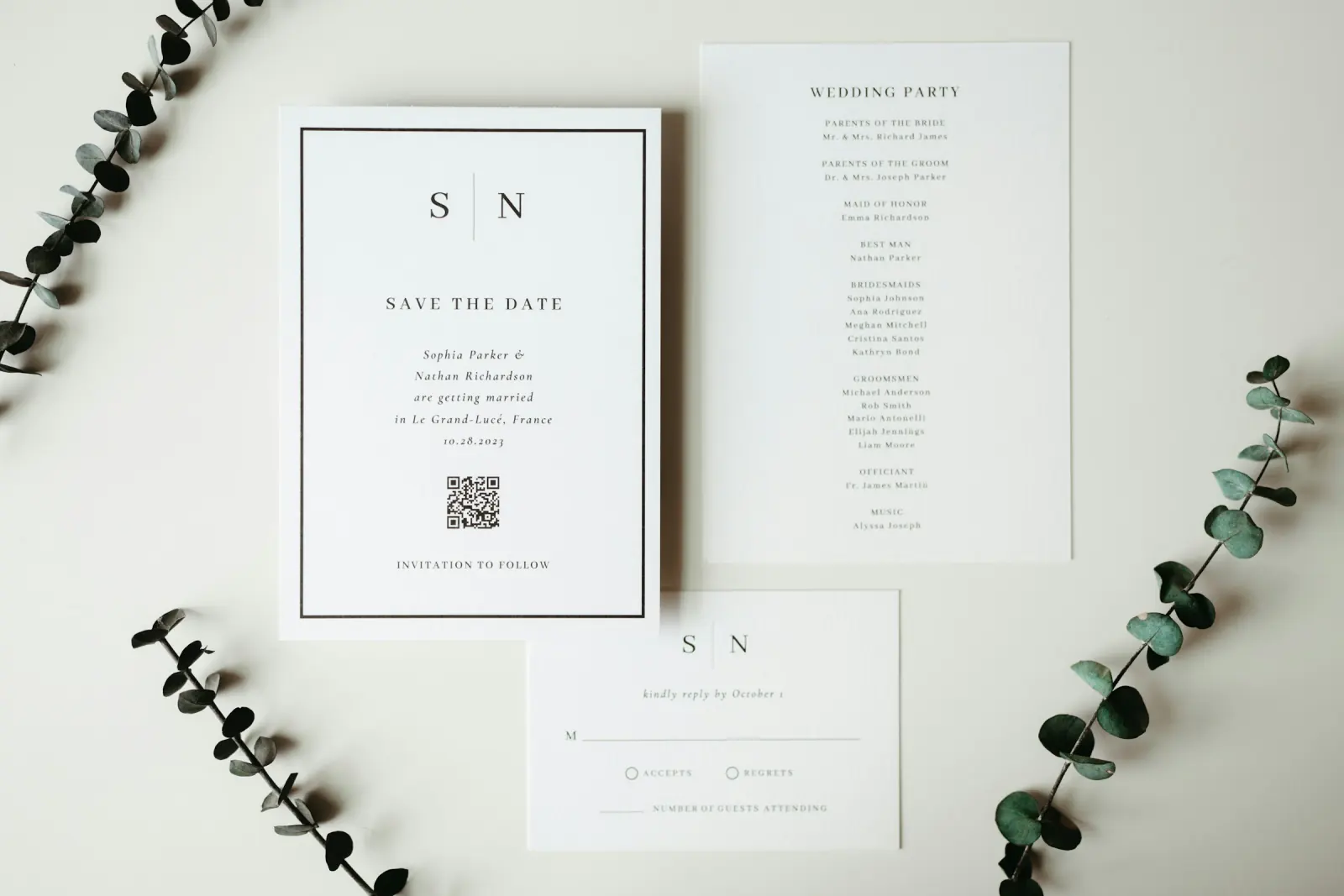
Every guest at your wedding carries a camera. The problem is not getting photos taken – it is getting them back. A QR code on each table that opens a shared gallery fixes exactly that. This guide covers the setup, the print sizes that still scan in candlelight, where to place the code, and how to get more than a handful of guests to use it.
How a wedding photo QR code works
The QR code is nothing more than a printed link to your event gallery. When a guest points the camera app at it, iPhone and Android show a banner; one tap opens the gallery in the browser. Nothing to install, no account to create – which is why it works for an 80-year-old great-aunt as well as for your college friends.
- You create the gallery and receive a QR code plus a link.
- The code is printed and spread around the venue.
- Guests scan, tap "Upload" and pick photos from their camera roll – or take one on the spot.
- Everyone sees the same live gallery and downloads the pictures they like.
One code for the whole wedding
Resist printing separate codes for ceremony, dinner and party. One gallery, one code, everywhere – otherwise you will spend the honeymoon merging albums.
Setting it up in three steps
Step 1: Create the event
Pick a platform that works without an app. With Guest Pictures the event takes about a minute: name ("Anna & Tom – 12 June"), date, an optional cover photo and the choice between an open and a private gallery. The wedding template comes with photo challenges pre-filled.
Step 2: Save the QR code and the link
The event page shows your QR code and a short link. Download the code as a high-resolution image file and copy the link – you will need it as the fallback line on your signs.
Step 3: Print and test
Drop the code into your table-card or sign design, print one copy on the actual paper stock and scan it with two different phones under warm, dimmed light. Only then send the full run to the printer.
Design and print guide: what actually scans
- Minimum 3 × 3 cm on table and menu cards. Smaller fails in candlelight; 5 × 5 cm is comfortable.
- Signs: A5 at every bar, A4 next to the guestbook and at the entrance – code at least 8 cm wide.
- Contrast: black or very dark code on white or cream. Never inverted, never on top of a photo or floral pattern.
- Quiet zone: roughly 5 mm of blank margin around a 3 cm code.
- Test scan from 1 m: an A4 sign must scan from a metre away, a table card from 30 cm. If not, enlarge.
- Short URL as fallback under the code ("or type the link: …") – for older phones and for people who simply dislike scanning.
- No glossy laminate: spotlights and candles create glare that defeats the camera. Use matte paper or matte film.
- Don't shrink the file: export at 300 dpi or as a vector. A screenshot pasted into Canva prints soft.
Printing cheat sheet
- Table cards: 3–5 cm code, matte 300 g card stock
- Bar: A5, 8 cm code
- Entrance / guestbook: A4, 10–12 cm code
- Ceremony program: 2.5–3 cm on the back page
Sample sign texts
Three lines are enough: what, how, why.
English:
"📸 Scan to share your photos of tonight
Point your camera at the code, tap the link, upload.
No app, no sign-up – and you can download everyone else's photos too."
German (for bilingual weddings):
„📸 Scannen & eure Fotos von heute teilen
Kamera auf den Code richten, Link antippen, hochladen.
Keine App, kein Konto – alle Fotos des Abends an einem Ort.“
Variants: formal ("We would love to see the day through your eyes"), playful ("Paparazzi wanted!") or for private galleries ("Guests only – please don't post elsewhere").
Where to place it: 10 spots
- Every dinner table – on the menu card or a small tent card
- The bar – A5 at eye level, guests queue here anyway
- Next to the guestbook
- Inside the ceremony program (back page)
- At the entrance or welcome sign
- In the restrooms – honestly, that is where people check their phones
- At the photo booth or photo corner
- At the edge of the dance floor or on the DJ booth
- On the seating chart
- At the late-night snack table – the last photos of the night are the funniest
How to announce it
- Wedding website and invitation: one sentence is enough ("We're collecting everyone's photos in one gallery – scan the code at the venue or open the link").
- Ceremony program: "Unplugged ceremony – but please shoot and share at the party!" Both wishes in one line.
- MC or DJ: two mentions – right after the welcome speech and again before the first dance. Fifteen seconds each.
- Live slideshow on a TV or projector: the moment guests see their own photo appear on screen, uploads snowball. This is the single most effective nudge.
- Photo challenges: "Photo with someone you met today", "The kids' table", "Best dance move". A printed challenge list next to the code gives people a reason to open it.
- Seed the gallery: upload 10–20 photos from getting ready or the rehearsal dinner so nobody uploads into an empty gallery.
Guests without smartphones
- Name a tech-comfortable "gallery buddy" per table who photographs and uploads on their behalf.
- Put a tablet with the gallery open next to the guestbook: "Tap to browse tonight's photos".
- Print the short link large – a few guests will type it into a laptop the next day.
- After the wedding, send the link by letter or email – or order a small set of prints for the grandparents.
Etiquette and privacy
- Private gallery if you don't want guests browsing and downloading the whole set. With the private option in Guest Pictures, guests upload but only you as host see the full collection.
- One line on the sign: "Please ask before posting other guests' photos on social media."
- Transparency: say who can see the photos and for how long. That is polite and also the core of GDPR-compliant photo sharing.
- Brief the photographer: guest photos complement the professional gallery, they don't replace it. Agree who uploads what.
- Children: ask parents at the table before sharing close-ups of kids.
After the wedding
- Within the first week: download the full gallery to your computer and back it up twice (cloud plus external drive).
- Keep the gallery open for 4–6 weeks: guests keep uploading for days, and out-of-town relatives want time to browse.
- Thank-you message with the link and a date for the "last call for uploads".
- Best-of album: merge the strongest guest shots with the photographer's edits.
- Photo book: pick 20–30 guest favourites – the candid ones almost always beat the posed ones.
Printable checklist
- ☐ Gallery created, wedding template chosen, privacy set
- ☐ QR code downloaded as a high-resolution file
- ☐ Short link copied for the fallback line
- ☐ Table cards: code ≥ 3 cm, matte paper, tested in dim light
- ☐ A5 bar signs and A4 entrance/guestbook signs printed
- ☐ Line added to wedding website and ceremony program
- ☐ MC/DJ briefed with two announcement times
- ☐ TV/projector for the live slideshow arranged with the venue
- ☐ 10–20 seed photos uploaded before guests arrive
- ☐ Gallery buddy assigned for tables with older relatives
- ☐ Download and backup reminder set for the week after
FAQ
Do guests need an app or an account?
No. The code opens the gallery in the phone's normal browser. Uploading and downloading work without any sign-up, on iPhone and Android alike.
How big should the QR code be on a wedding table card?
At least 3 × 3 cm, ideally 4–5 cm. On signs for the bar or entrance, 8–12 cm so it scans from a metre away.
What if a phone won't read the code?
That is what the short link under the code is for. The usual culprits are glare on glossy paper, too little light or a code printed too small. Worst case, a guest at the table holds up their open phone for the other to scan.
Can I use the same QR code before and after the wedding?
Yes. The code always leads to the same gallery – print it on the invitation, the signs and the thank-you card. Everything ends up in one place.
Can guests see each other's photos?
In an open gallery, yes – that is usually the point, because everyone can download. Choose the private option and guests see only their own uploads while you as host see the whole collection.
Keep reading: How to share wedding photos with guests, Digital photo booth for weddings and the complete QR code photo sharing guide.
Your wedding QR code in one minute
Create the event, download the QR code, print it – start for free with Guest Pictures. Live gallery, slideshow, photo challenges and online photo booth included.
Get Started Free